
CCK8 POS user manual
How to take orders, run the kitchen, set up your menu and read your reports. Pick a topic from the contents or search.
Getting started
Sign in and find your way around
Open pos.cck8.my on a phone, tablet or computer, tap Sign in (top right) and sign in with the email and password your owner gave you. Owners create their account once with a licence key (Create an account).
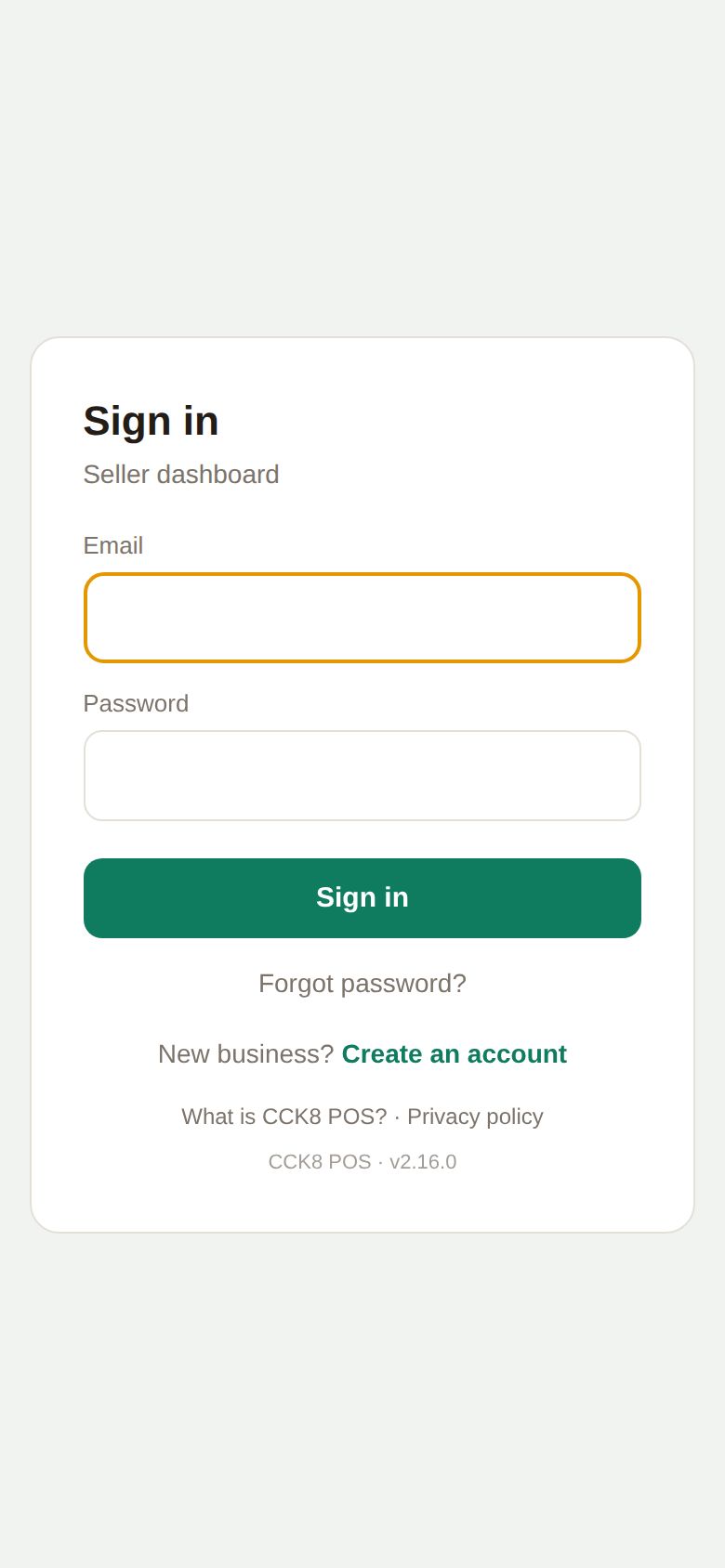
After signing in you land on the Dashboard. Everything else is in the menu:
- Computer / tablet: the white menu on the left, in groups: Daily work, Menu & offers, Customers & reports and Shop setup. Tap a group title to fold or open it.
- Phone: the bar at the bottom has Dashboard, New Order, Orders and Menu. More opens the full menu.

You only see the pages your role allows. The top bar has the outlet name (tap it to switch outlet if your shop has several), the 🌐 language switch, the ? help button and Logout.
Install the app on your phone or tablet
CCK8 POS works in the browser, but installing it puts an icon on your Home Screen and opens it full screen, like an app.
- Android (Chrome): tap ⬇ Install app in the top bar, or Chrome's menu ⋮ → Install app. On Google Play: search CCK8 POS.
- iPhone / iPad: open the site in Safari, tap ⬇ Install app for the steps: Share button ⬆ → Add to Home Screen → Add.
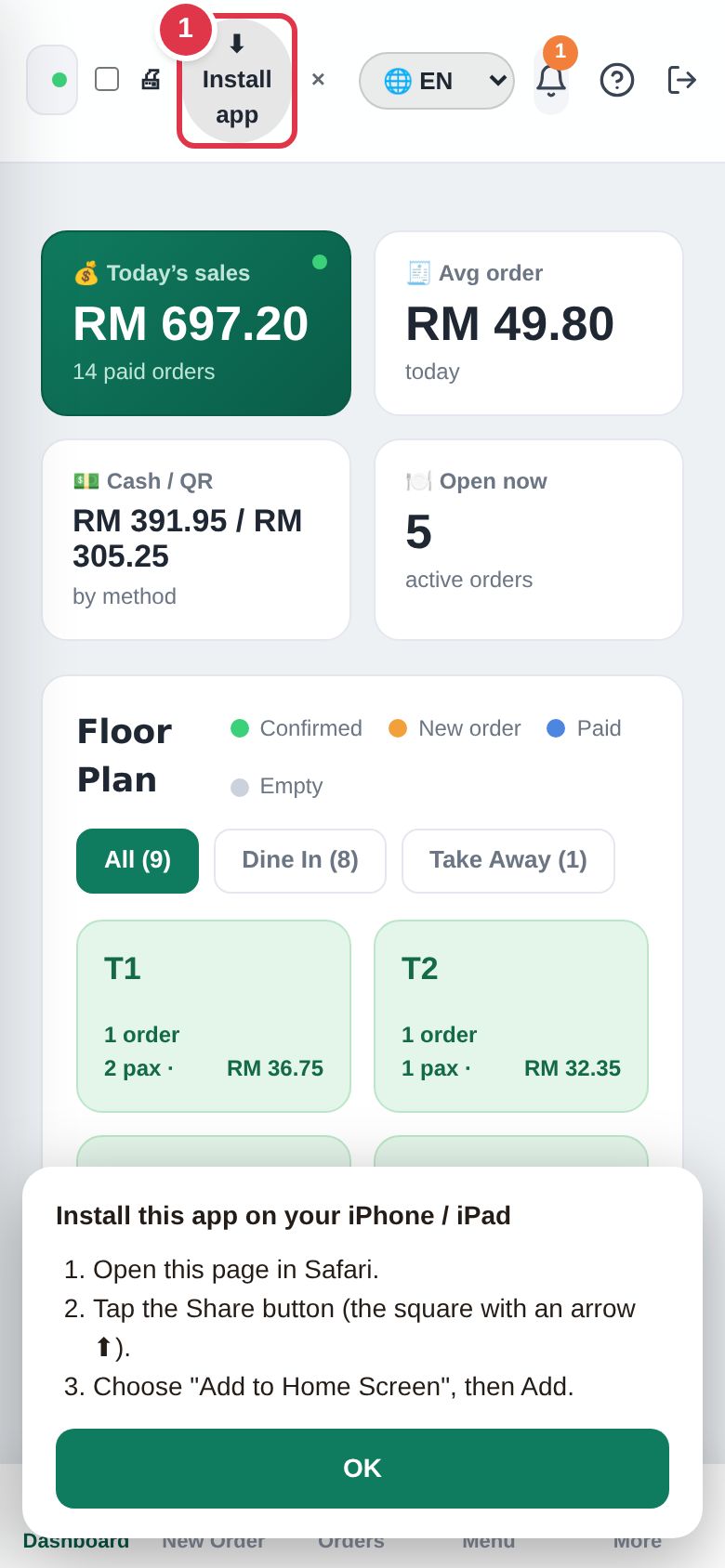
New versions arrive by themselves. The app updates the next time you open it.
Language, screen lock and your account
Language: tap 🌐 in the top bar and choose English, 中文 or Bahasa Melayu. Each device remembers its own choice. Your menu names are never translated.
My Account (tap your name at the bottom of the menu):
- change your display name (printed on receipts) and your password;
- set a screen-lock PIN (4 or 6 digits). When the owner turns on the screen lock, the screen locks after a few idle minutes and each person unlocks with their own PIN;
- owners: see the plan, tap Buy now on WhatsApp to buy or renew a key, enter the new licence key to extend or change plan, and Delete my account.

Daily work
The Dashboard
The Dashboard is the live view of your shop. It refreshes by itself; new orders ring a chime.
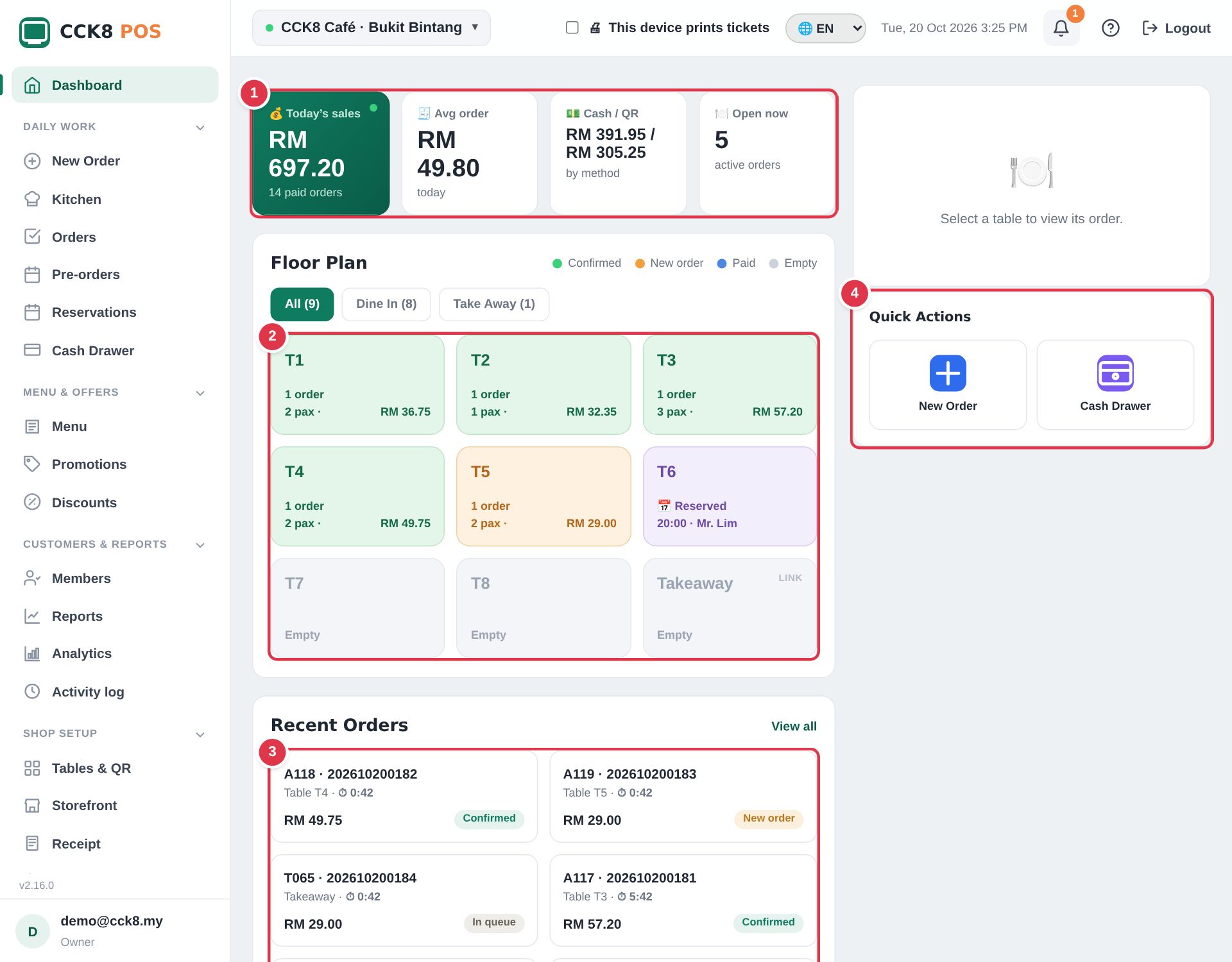
- Today's sales, average order, cash / QR split and open orders.
- Floor plan: every table and its orders. Colours: New order (waiting for you), Confirmed, Paid, Empty. Filter by Dine in / Take away.
- Recent orders: the latest orders with their queue number, time and status. Tap one to open it.
- Quick actions: New order, Cash drawer and more.
Take an order at the counter
Use New Order for walk-in customers, takeaway, phone orders and delivery apps.

- Pick a category, then tap items to add them. Items with options (size, sugar, add-ons) open a small window first.
- Choose Dine in (pick the table), Take away or a delivery app (GrabFood / foodpanda).
- Optional: the customer's member phone to earn points.
- Check the total and tap Charge to take payment.
Every order gets a short queue number that starts again each day: A for dine-in, T for takeaway, G/P for GrabFood / foodpanda. It is printed on the receipt and shown on the kitchen and Now Serving screens.
Take payment
Tap Charge (New Order) or Take payment (an order on the Dashboard). Choose how the customer pays:
- Cash: tap what the customer gave you (Exact, 5, 10, 20, 50, 100 or the number pad). The change is shown. Totals round to 5 sen for cash.
- DuitNow QR / your shop QR: show the QR, check the payment arrived on your phone, then confirm.
- Online (3rd party payment gateway): a QR with the exact amount appears; it turns to Paid by itself when the customer pays. Premium

Tap Confirm Payment. You can add the customer's member phone here too. Then print the receipt if they want one. A paid order is then closed (or closes by itself if the owner turned on Close automatically when paid).
Change, move, split or void an order
Tap an order (on the floor plan or in Recent orders) to open it. The buttons at the bottom:

- Edit order: add or remove items. Items added later go to the kitchen as ADDED ITEMS.
- Add discount: a % or RM discount, a saved discount, a voucher or next-visit code, or redeem member points.
- Move table: the customer changed tables.
- Merge: join two orders of the same table into one bill.
- Split bill: tick the items one person pays for; they become a separate bill.
- Take payment and then Close order.
- Food ready (kitchen flow) and Kitchen ticket (print it again).
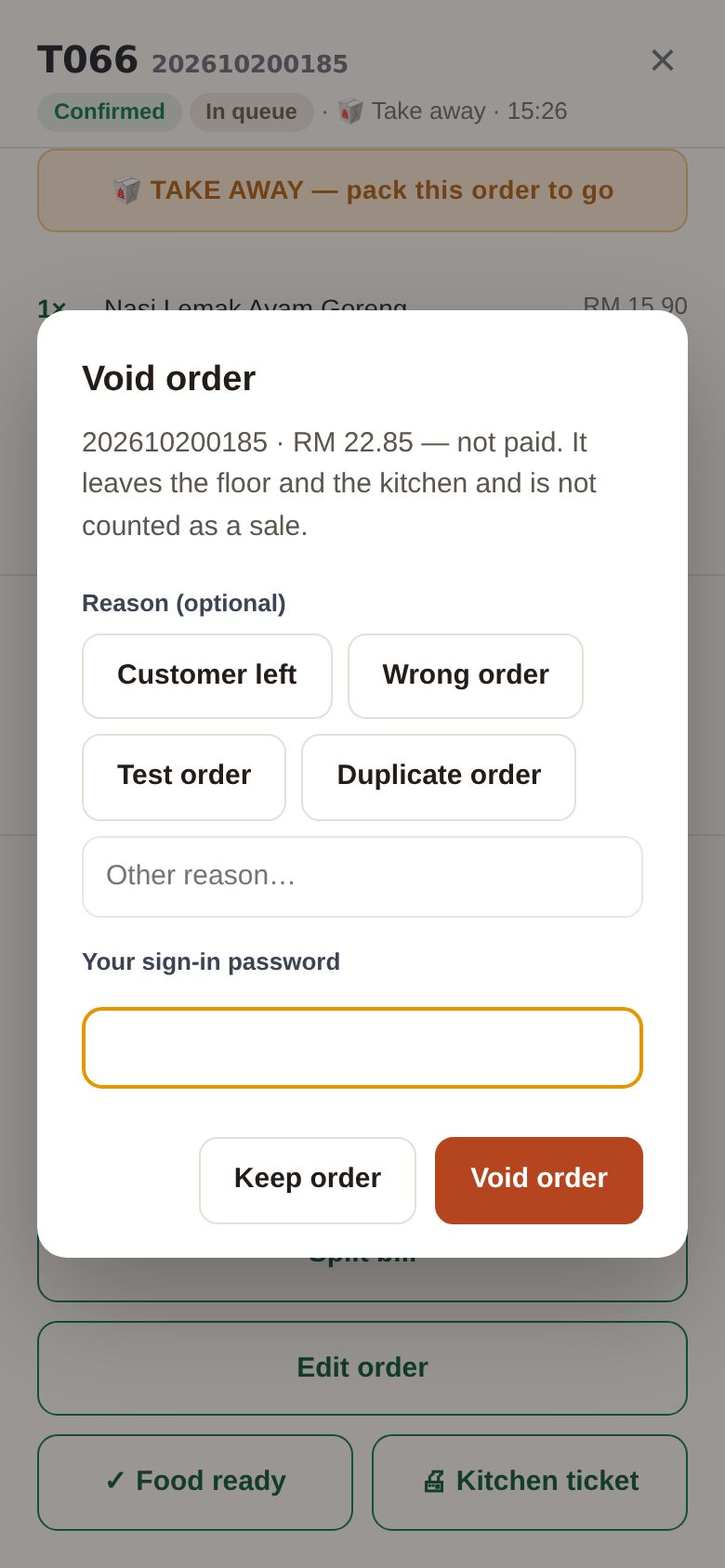
- Void order: cancel an order that won't be paid (customer left, wrong or test order).
Voiding asks for a reason and a password. The owner decides (Settings → Store & ordering → Void orders) whether anyone can void with their own password, or a manager / owner must approve, and which password is used.
Kitchen screen and Now Serving
With Order flow → Kitchen switched on (Settings → Store & ordering), confirmed orders appear on the Kitchen page as tickets.
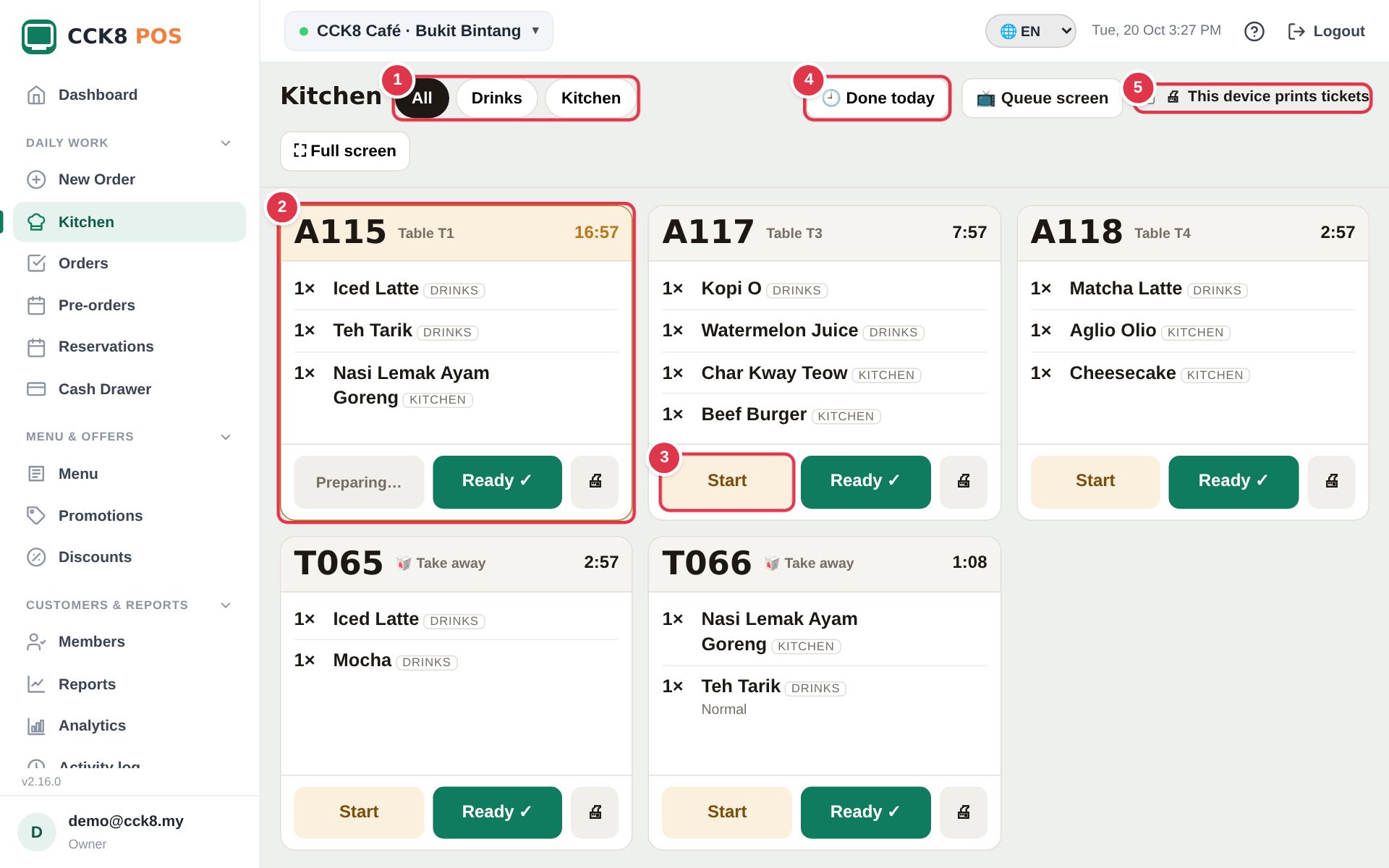
- Filter by station (All, Drinks, Kitchen…) so the bar only sees drinks.
- Each ticket shows the queue number, table and how long it has waited (amber after 10 minutes, red after 20).
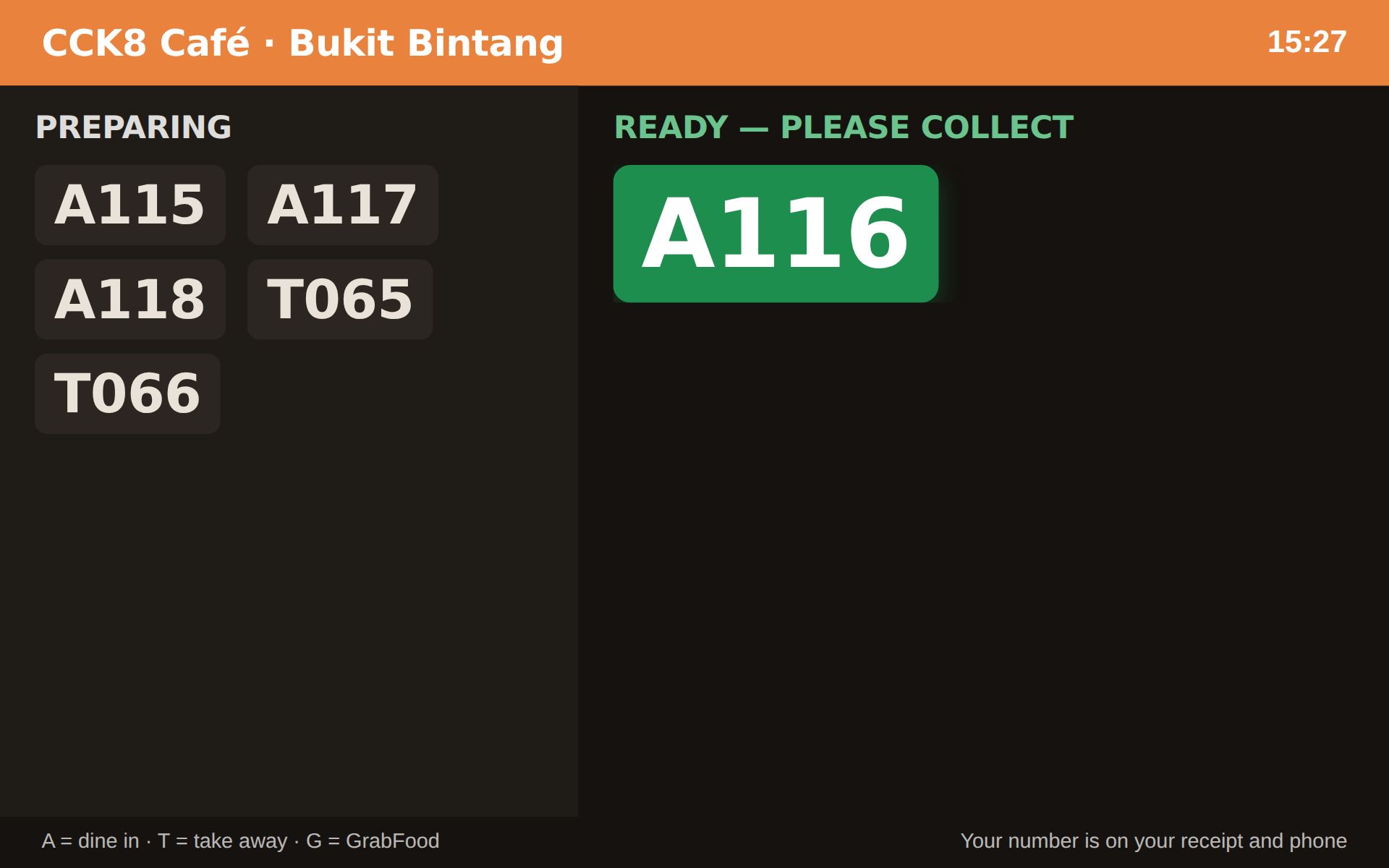
- Tap Start when you begin and Ready ✓ when it's done. The customer's phone and the Now Serving screen show it's ready.
- Done today brings back an order you cleared by mistake. Queue screen opens the Now Serving screen for a TV.
- Tick This device prints tickets on the one device connected to the kitchen printer.
Ready orders wait in Waiting for pickup. Tap Collected when the customer takes it, or leave it: it clears by itself after a few minutes.
Orders history
Orders lists every order: when it was made and paid, items, payment and who took it.
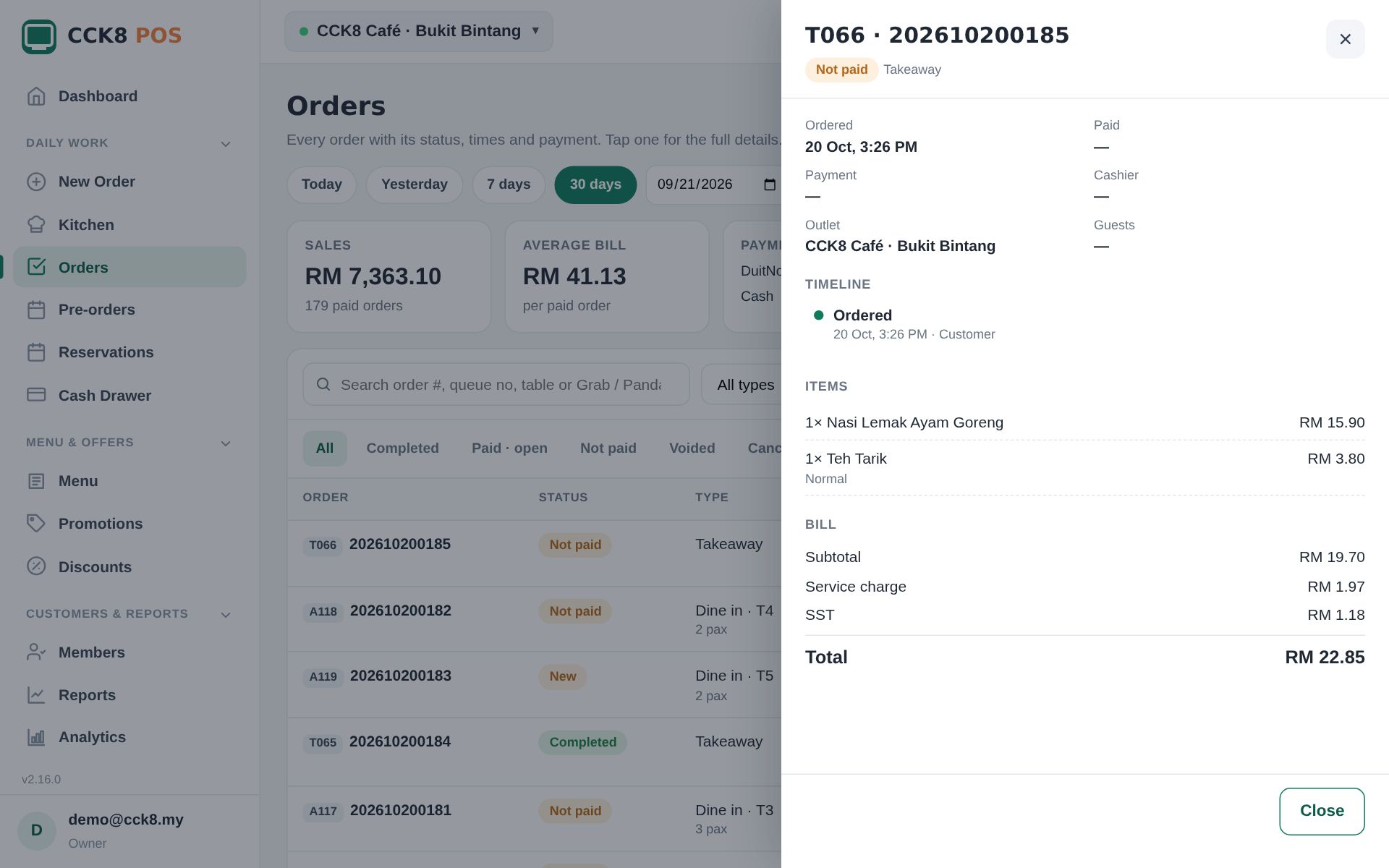
- Choose the dates, then a tab: Completed, Paid · open, Not paid, Voided, Cancelled, Rejected.
- Search by order number, queue number, table or GrabFood / foodpanda reference.
- Tap an order to see its timeline (who did what, when), items, bill and payment, and to reprint the receipt.
Cash drawer
Keep track of the cash in the till for each shift.
- Open the drawer at the start of the day with the starting cash (float).
- Record Cash in / Cash out during the day (for example "buy ice").
- Close at the end: count the cash and type it. The system shows what it expected and any difference.

Reservations
Write down table bookings: name, phone, number of people, date and time, table and a note. Today's bookings also show on the Dashboard.

Customer QR ordering
Tables and QR codes
Each table has its own QR code. Customers scan it with their phone camera, order and (if you allow it) pay, without an app.

- Add table: give it a name (T1, Patio 2…). Print its QR code and stick it on the table.
- Custom links: a QR that isn't a table, for example a takeaway counter or a flyer.
- Delete a table or link you no longer use. If it still has an order that isn't finished, you'll see its number (for example A012): close or void that order on the Dashboard first, then delete. Finished orders stay in Orders history.
- Payment per link: pay later (customer orders, pays at the counter) or pay first (customer pays on the phone before the kitchen sees it). Premium
- Each customer has their own cart (custom links): for one QR that many people scan, such as a poster, the counter or your social media. Every phone orders on its own and sees only its own orders. Nobody needs to sign in.
What your customer sees
The customer sees your menu with photos, options, tags (spicy, vegetarian…) and running promotions.
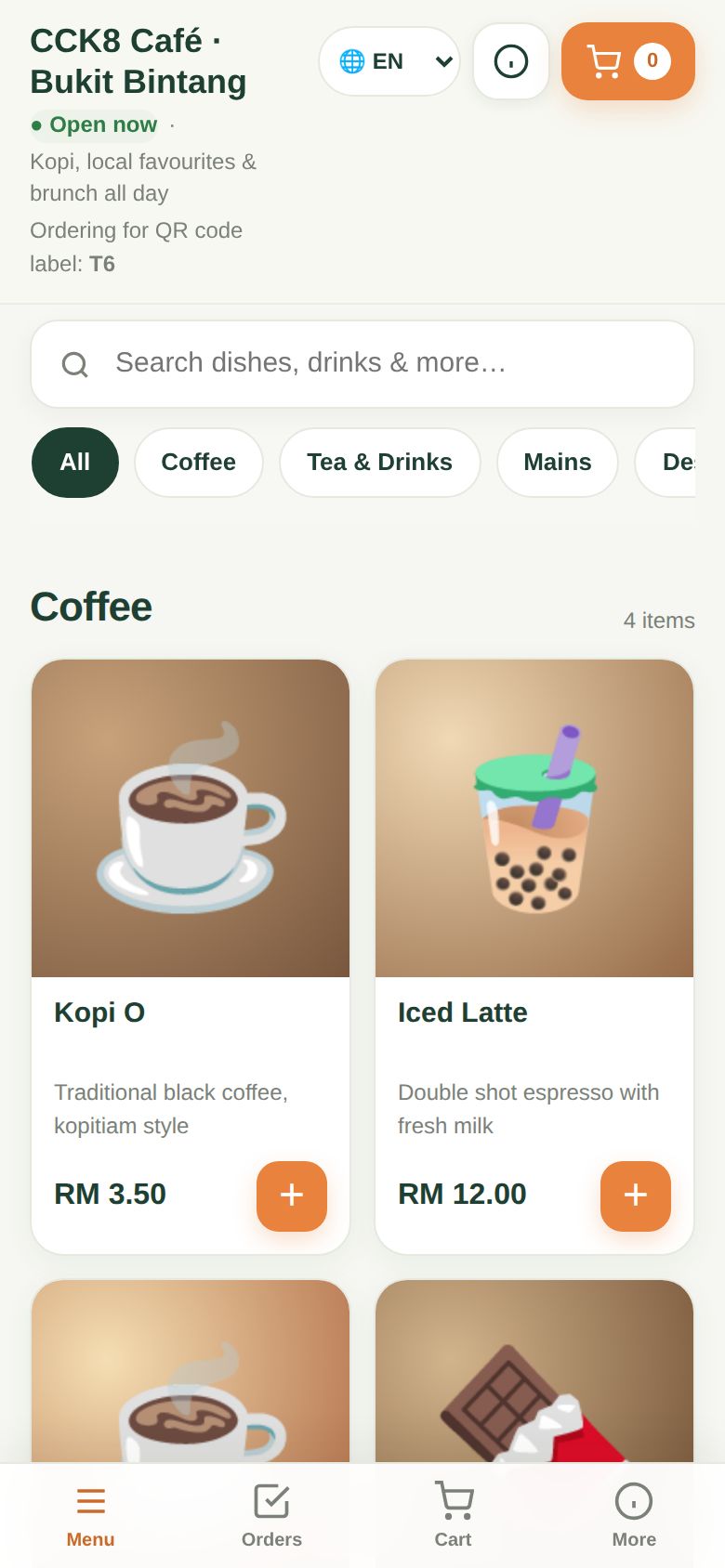
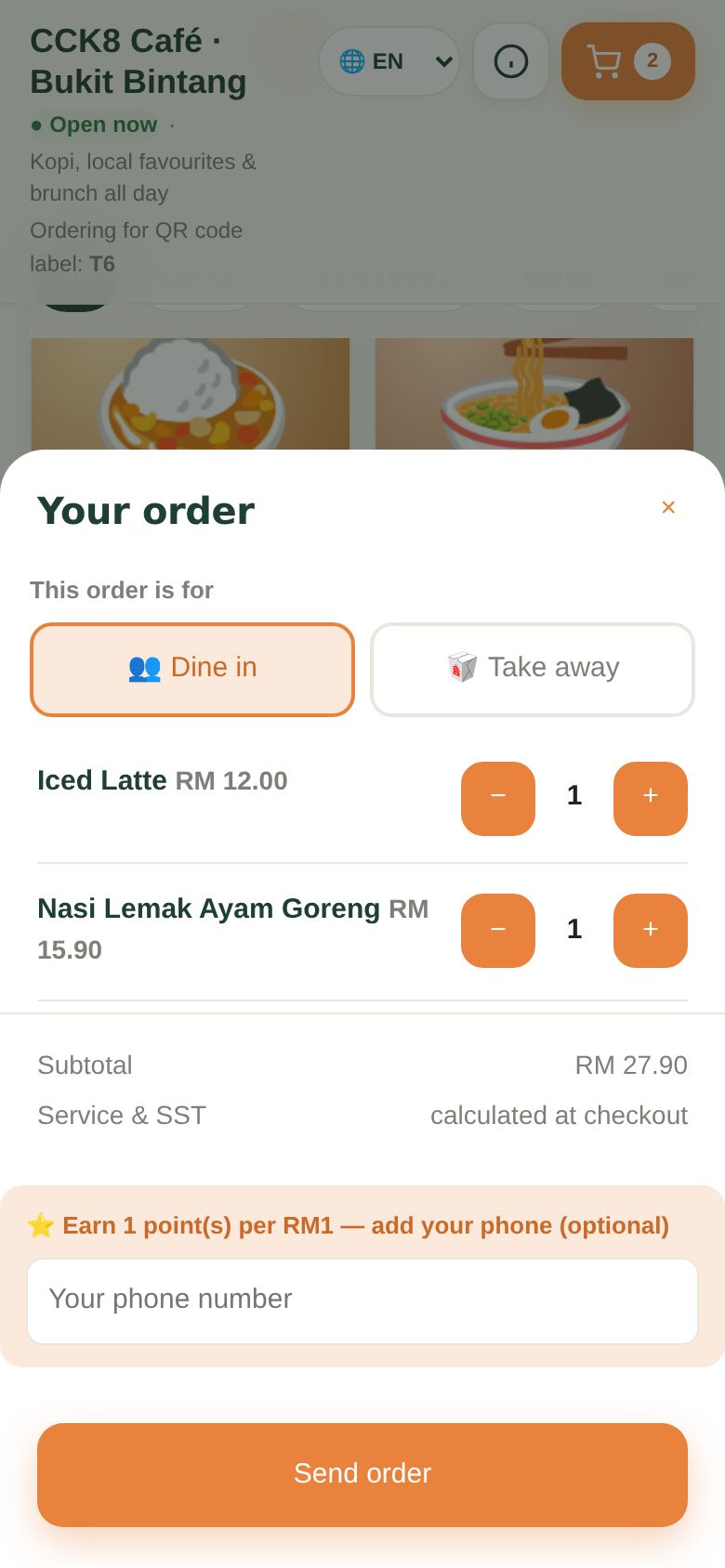
- Everyone at the table who scans the same QR shares one cart (except on a custom link set to own cart per customer).
- After ordering, the phone shows the order's progress. When the food is ready it rings and vibrates.
- Customers can switch the language (English / 中文 / BM) if the shop allows it.
Pre-orders (order days ahead)
Sell items that need to be ordered ahead, such as whole cakes, festive sets or catering trays. The customer chooses the collection day and time, and pays first.
Set it up (owner or manager)
- Menu → Edit the item → tick Pre-order item. Set Order at least … days ahead and, if you can only make so many, Most per day.
- Settings → Pre-orders: the collection time frames customers choose from (for example 10:00-12:00, 14:00-17:00) and how far ahead they can book.
- Tables & QR: pre-order items are only on your custom links, not on table QRs. Use a custom link with Each customer has their own cart switched on, and share its QR or link.
- No online payment? Upload your payment QR in Settings → Payments & tax, so customers can pay you.


When a pre-order comes in
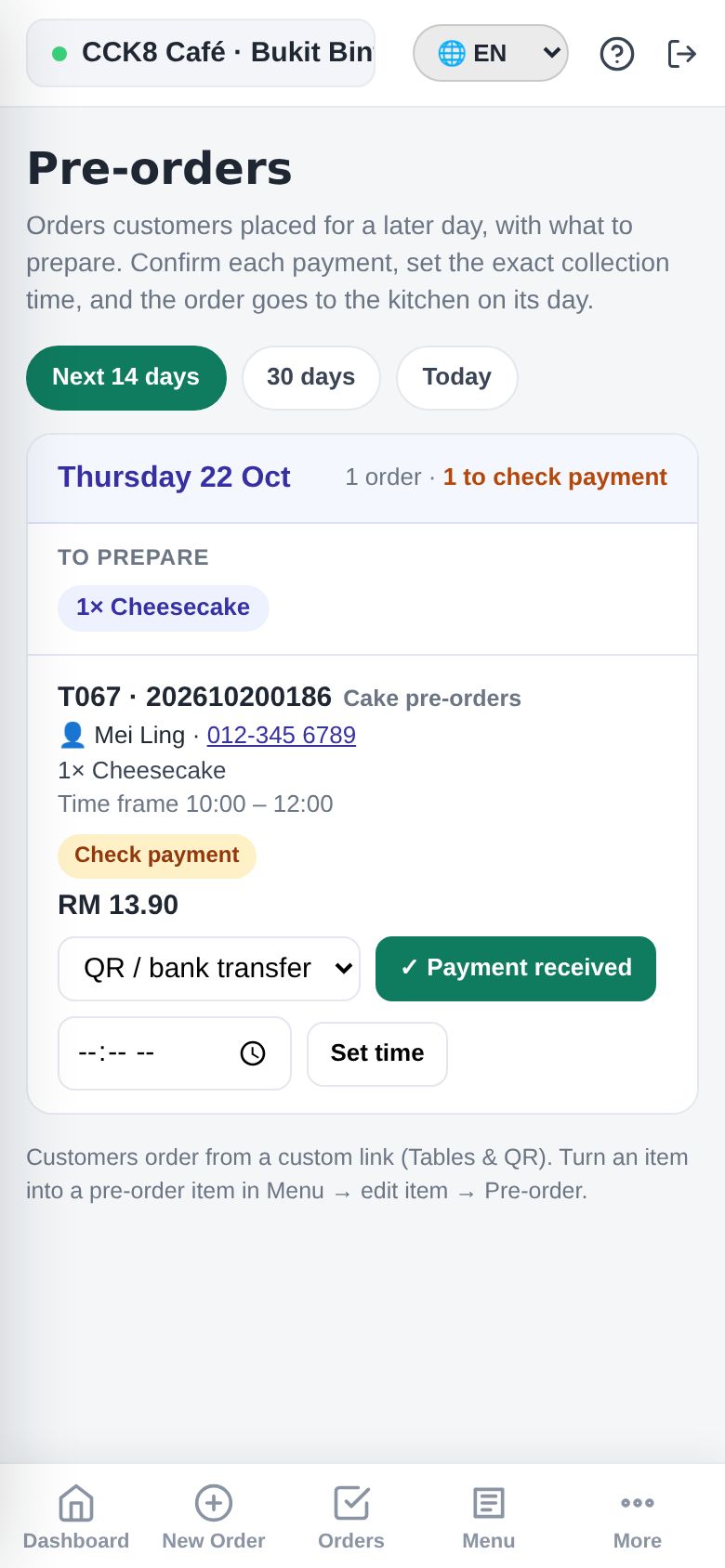
- It shows on the Dashboard straight away with 📅 and the collection day, marked Check payment.
- Check your bank or QR. When the money is in, open the order and tap ② Payment received. The customer's phone then shows Paid · booked.
- Want to fix the exact time? Set ① Exact collection time and tap Save time. The customer sees it under "My orders".
- The order goes to the kitchen by itself on the collection day. Tap Send to kitchen now if you want to start earlier.

The Pre-orders page (Daily work) lists them day by day, with To prepare totals ("12 × Cheesecake") so you know what to make, plus each customer's name and phone.
Menu and offers
Menu: categories, items and options
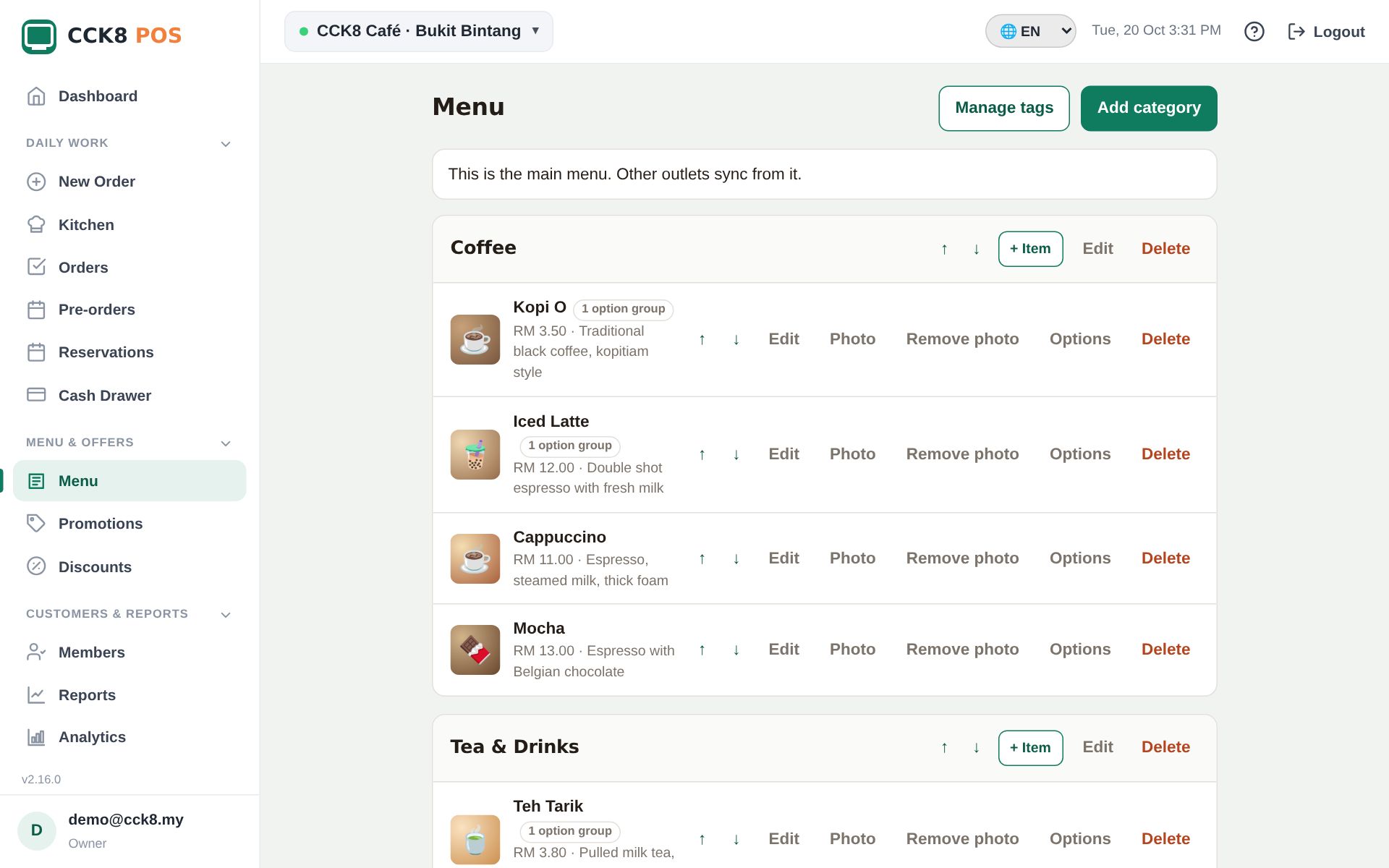
- Categories on the left (Coffee, Mains…). Drag to change the order.
- + Item (or Edit on an item): name, description, price, kitchen station (kitchen / drinks / bar), tags and Available. Photo adds a picture.
- Options (option groups): for example Sugar level (choose 1) or Add-ons (choose up to 3), each with an extra price.
- Set meals: an item with choice groups linked to real items, e.g. "Lunch set: a main + a drink".
- Sold out: flip the switch when an item runs out; customers can't order it until you switch it back.

Tags and icons
Tags help customers choose: Spicy, Vegetarian, No pork, Best seller… Menu → Manage tags.

- Tap one of the 27 ready-made food & drink icons, or upload your own icon (SVG file, up to 50 KB).
- Give it a name and save, then tick the tag on each item.
Promotions
Promotions apply by themselves to QR and counter orders (not delivery apps):
- % off / happy hour: items or categories, days, time window and dates.
- Buy X get Y free, spend & save.
- Next-visit code: a one-time code printed on the receipt to bring customers back.

Discounts and vouchers
Save discounts you use often (Staff meal 50%, RM 5 off) and voucher codes. The cashier picks them under Add discount on an order. A one-off discount typed on a bill always works.

Customers and reports
Members and loyalty points
Customers join with their phone number and earn points on each paid bill. They redeem points as a discount (Add discount → Redeem points).

- Set how points are earned and used in Settings → Customers & alerts → Loyalty points.
- Open a member to see their history or adjust points (with a reason).
- Several outlets: the owner can let members use points at every outlet.
Reports and analytics
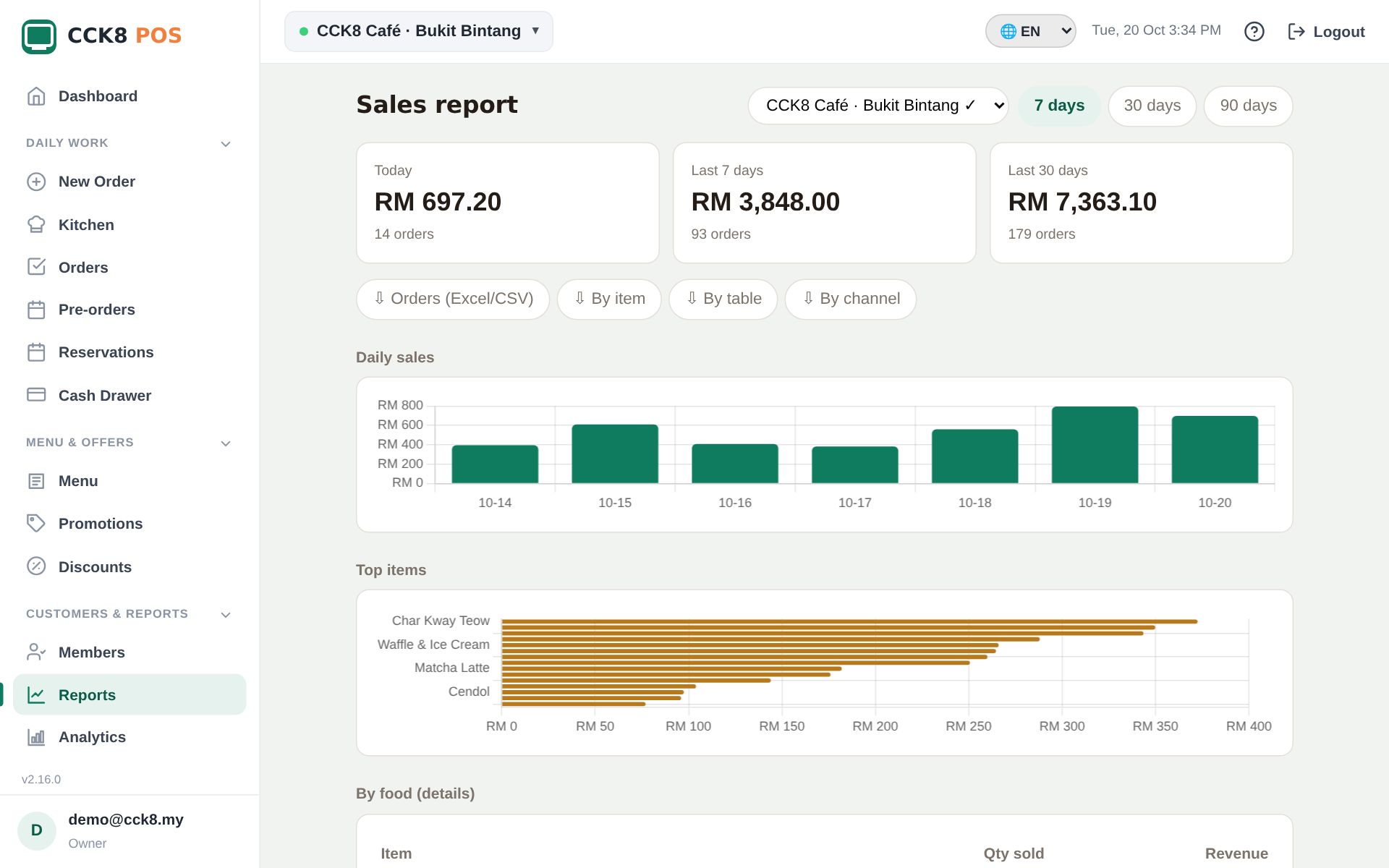
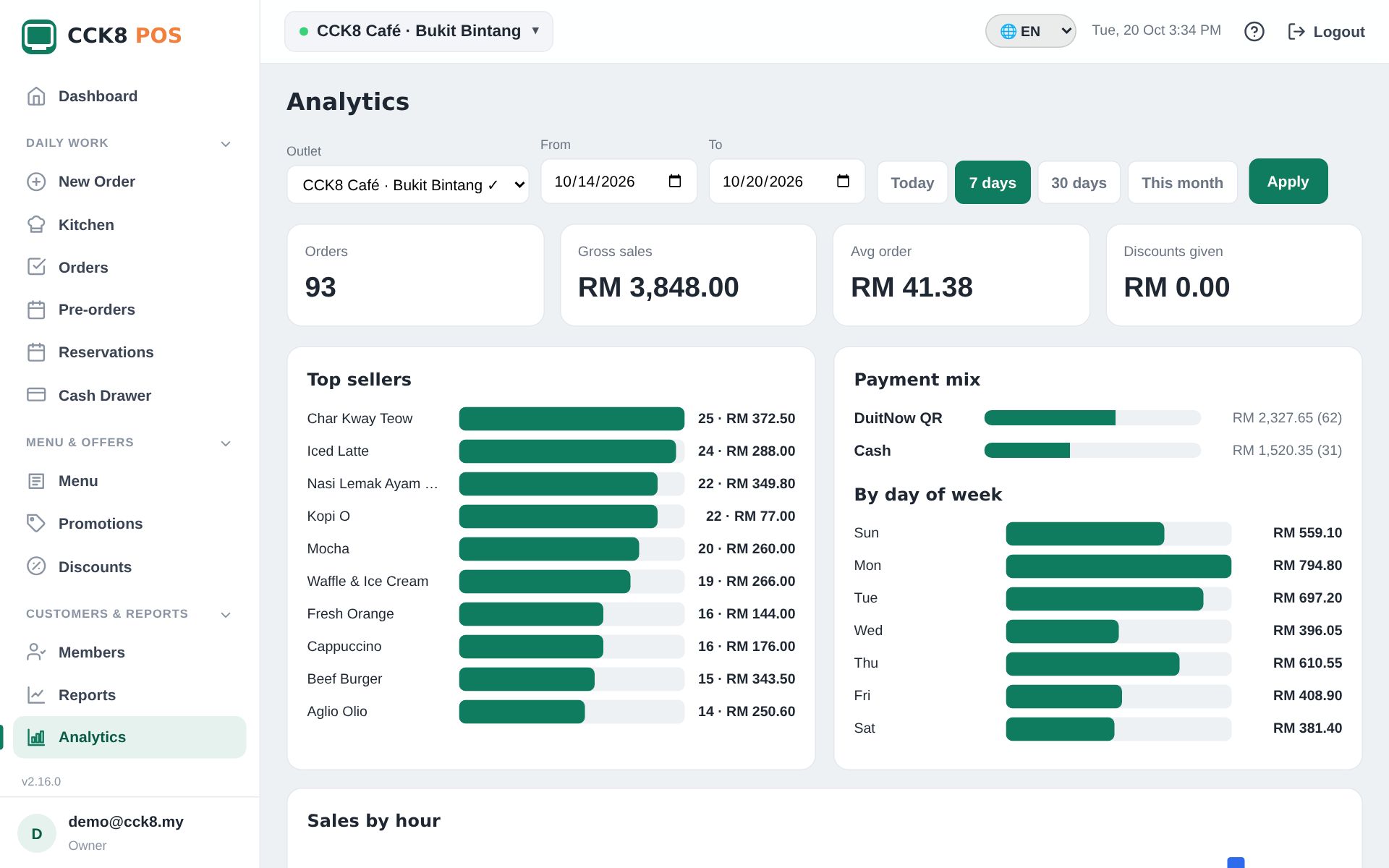
- Reports: sales per day, per item, per table, per channel (with GrabFood / foodpanda commission), tax summary and every transaction. Pick the dates at the top.
- Analytics: busy hours and days, payment mix, sales by staff, best sellers.
- Export to Excel (CSV) or your accounting software (SQL Account, AutoCount).
- Several outlets: choose one outlet or All outlets.
Activity log
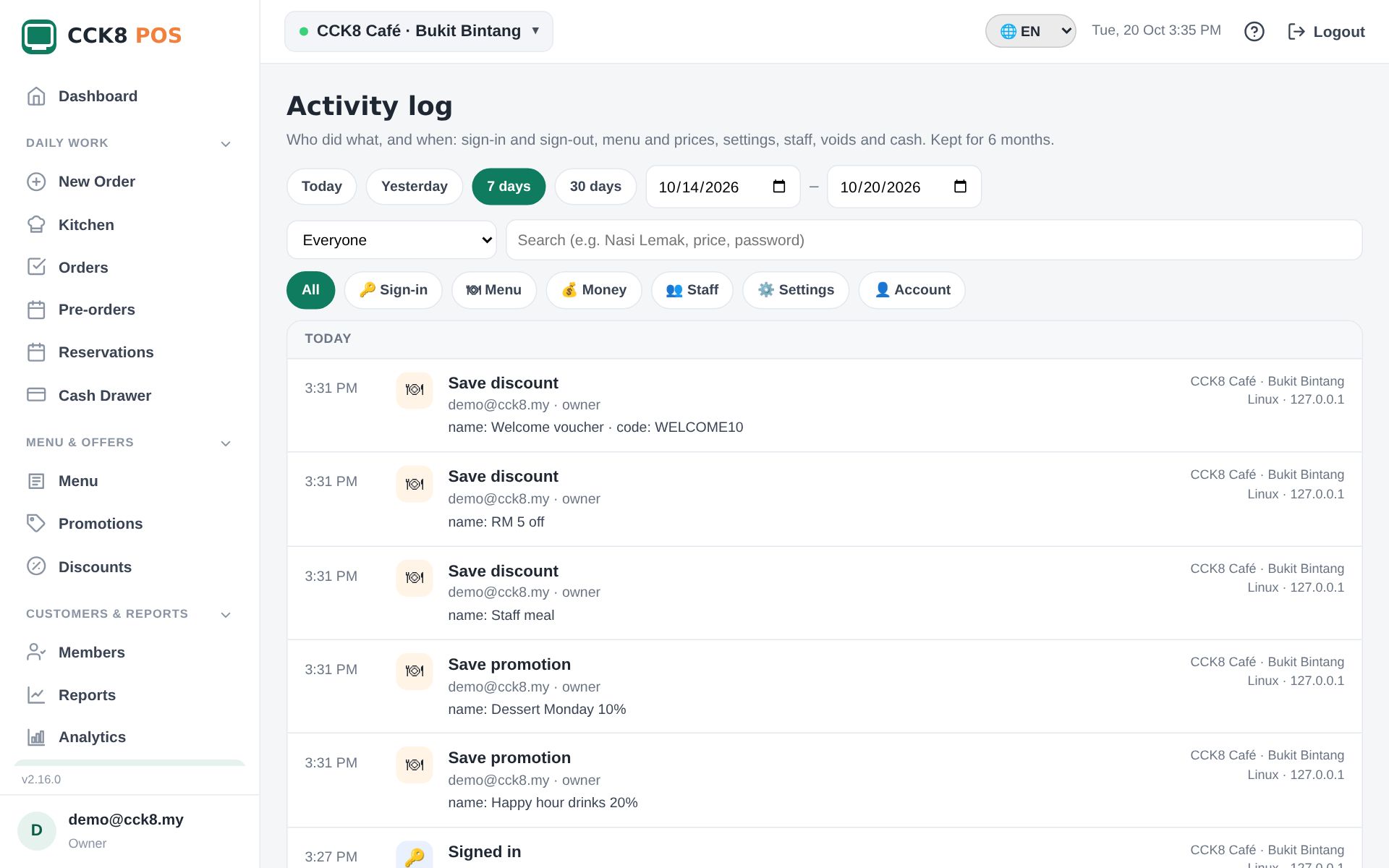
See who did what and when: sign-ins, menu and price changes, settings, staff changes, voids, cash drawer and point adjustments. Filter by date, person and type. Kept for 6 months.
Shop setup (owner)
Storefront: company info and opening hours
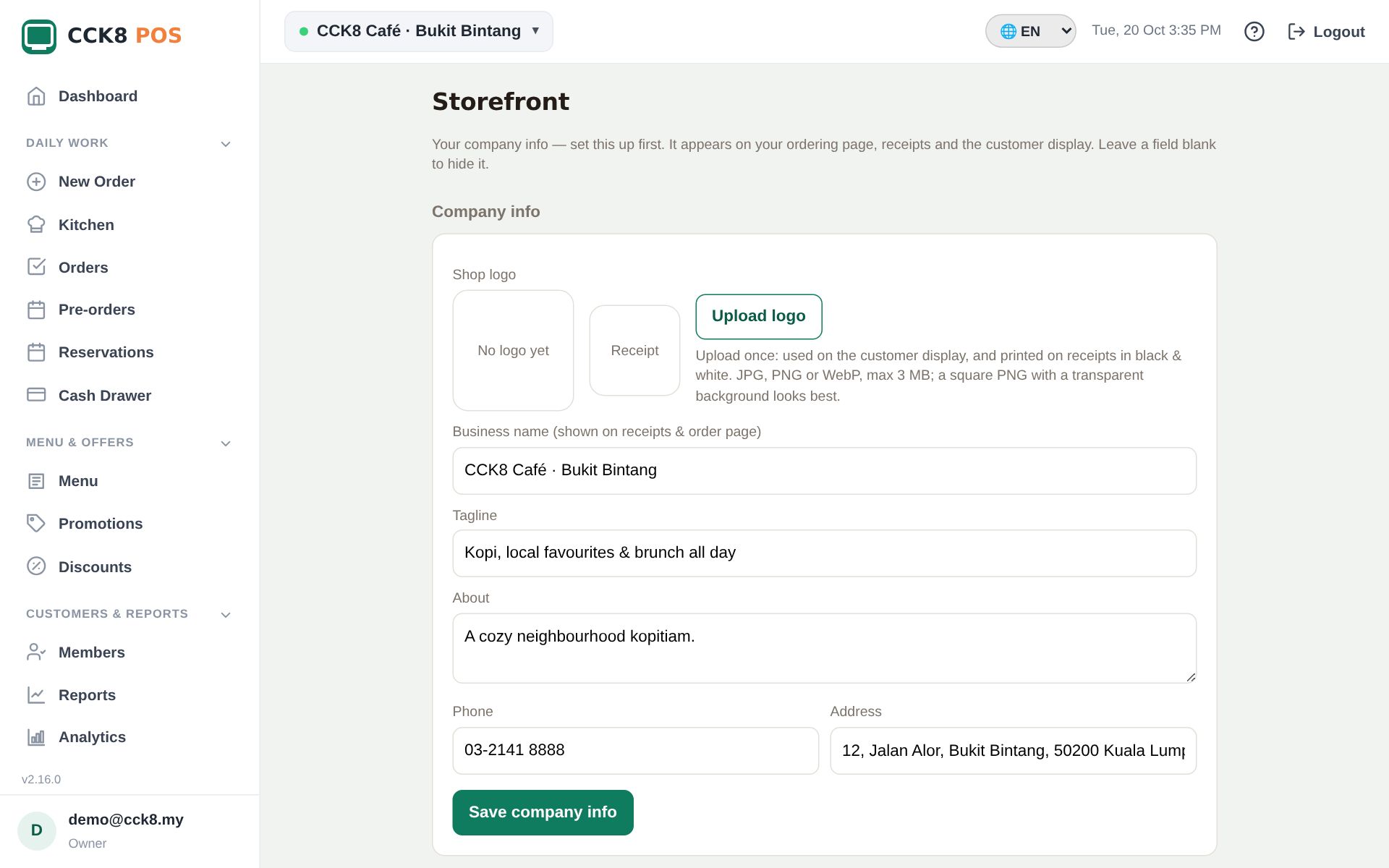
Do this first. Company info: logo, shop name, tagline, phone and address (shown to customers and on receipts). Opening hours: customers can only order by QR while you are open. Promos: pictures that slide on the customer's menu.
Staff and permissions
Staff → Add staff: name, email and role. They get an email to set their password.

| Role | Can do (by default) |
|---|---|
| Owner | Everything, including outlets, licence and the activity log. |
| Manager | Orders, payments, menu, storefront, settings, reports and staff. |
| Cashier | Take orders and payment, mark items sold out. |
Tick or untick single permissions per person, choose which outlets they work at, or Pause someone who left.
Outlets (branches)
Outlets → Add outlet: copy the menu, settings, company info and promotions from an existing outlet in one step. How many outlets you can have depends on your plan.
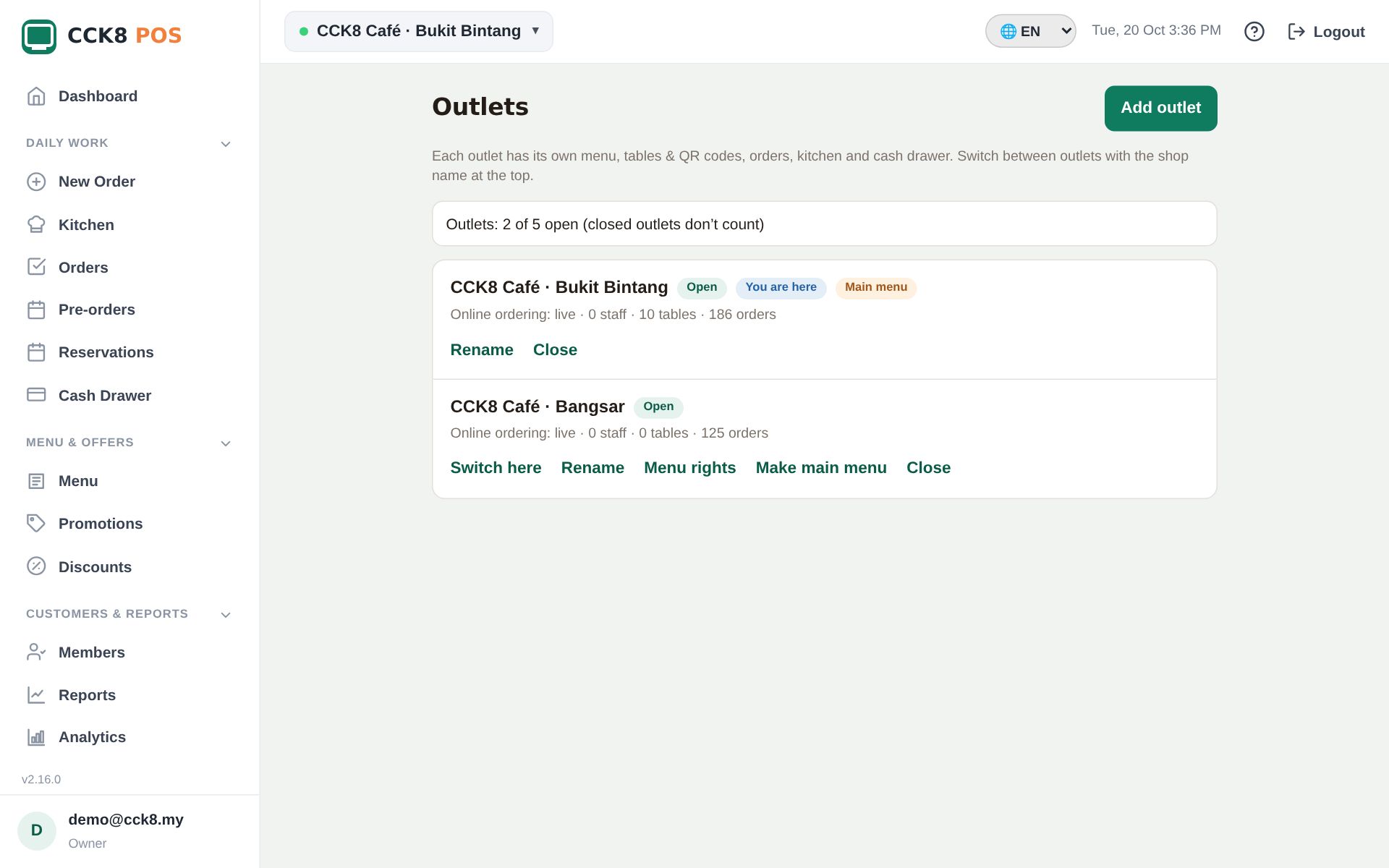
Switch outlet from the outlet name at the top. Reports can show one outlet or all of them together.
Settings
Settings has five tabs and a search box. Save all settings at the bottom saves every tab.
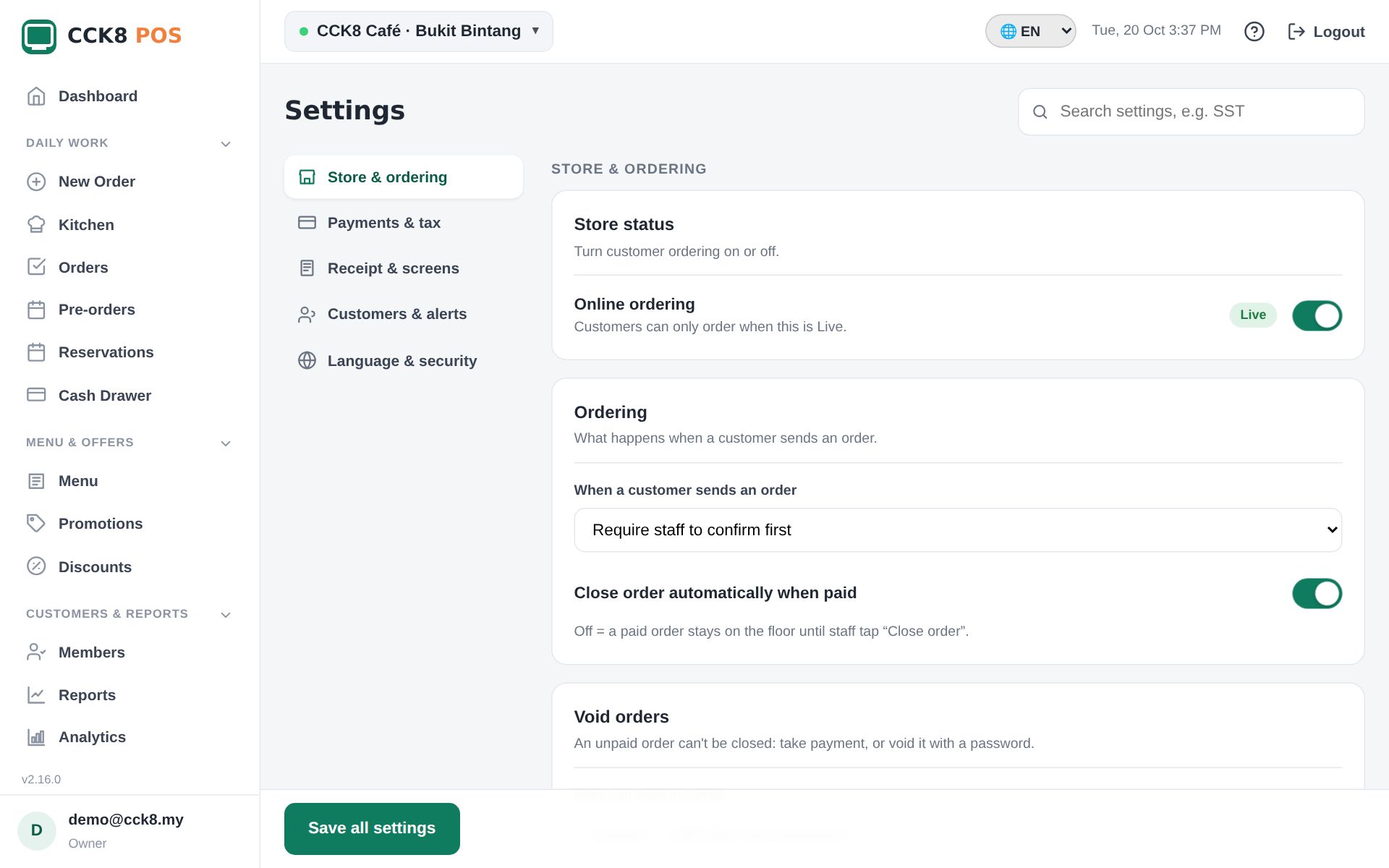
| Tab | What's inside |
|---|---|
| Store & ordering | Open / closed, QR ordering, order flow (Simple or Kitchen), queue numbers, delivery apps, void rules |
| Payments & tax | Payment methods, your DuitNow / bank QR, online payment, SST, service charge, rounding |
| Receipt & screens | Receipt details, customer display, customer page theme |
| Customers & alerts | Loyalty points, Telegram order alerts |
| Language & security | Languages and currency, screen lock |
Online payment
Let customers pay on their phone (FPX, cards, Touch 'n Go and other e-wallets) through a 3rd party payment gateway, DOKU. The money goes straight to your own DOKU account.
- Open a DOKU account and copy its keys from DOKU Back Office → Integration → API Keys: Client ID, Secret Key and API Key.
- Settings → Payments & tax → Online payment: switch on Turn on online payment, paste the keys, Save, then Test connection.
- Copy the Notification URL from the card into the gateway (DOKU Back Office → Settings → Notification URL), so it tells us when a customer has paid.
- Choose per table link: pay first or pay later (Tables & QR). Dine-in: customers can "Pay bill" on their phone lets table customers pay their bill online too.

Receipt and printers
Receipt is a drag-and-drop designer: logo, shop details, SST / SSM numbers, cashier name and a footer message, for 58 or 80 mm printers.

Printers: CCK8 POS prints through the device's normal printing (AirPrint, a USB or Bluetooth thermal printer set up on the device). Tick This device prints tickets on the Kitchen page of the device connected to the kitchen printer.
Help
Common questions
- Customers say "the shop is closed".
- Check Storefront → Opening hours, and Settings → Store & ordering → store status.
- An order is stuck on the kitchen screen.
- Tap Ready, then Collected. Anything forgotten clears by itself after a few hours.
- A customer paid online but the order isn't paid.
- Open the order: it checks with the payment gateway again. It never marks an order paid unless the gateway confirms it.
- Kitchen tickets don't print.
- On the kitchen device: Kitchen page → tick This device prints tickets, keep that page open, and check the printer is the default printer.
- I forgot my password.
- Sign-in page → Forgot password?. A staff member can also ask the owner to send a new invitation.
- The screen is locked and I forgot my PIN.
- Unlock with your password instead, then set a new PIN in My Account.
- New orders don't show until I refresh.
- Check the internet connection. The page shows "New update — tap to refresh" when it falls behind.
- How do I delete my account?
- My Account → Delete my account, or the Delete my account page. We confirm by email.
Still stuck? Contact your CCK8 POS support.
Nothing found. Try another word.
Premium = included in the Premium package (your plan may differ). · CCK8 POS 2.17.0 · Privacy policy